The Federal dataset is the easiest to work with because its header is comprised of variable codes.
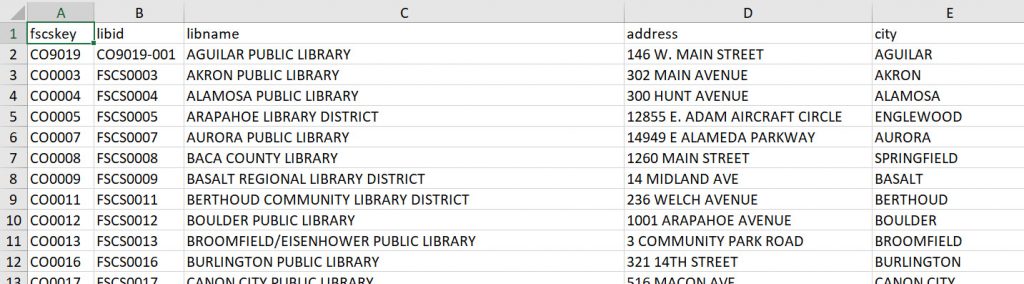
- In the spreadsheet, add columns for the following variables:
- resort
- metro
- Both columns hold boolean values that indicate whether a library is considered to be a “resort” library, and/or whether it’s considered to be a “metro” library. The former is used to isolate resort library data in certain parts of the tool because it often contains outlier data that “messes” with totals, averages, and ratios. The latter is (or was) used to compile reports on libraries that share certain characteristics. (We used to call this the “JeffCo report”?)
- Set the values in both resort and metro columns to 0 (zero).
- Format all cells as “General.”
- This holds true anytime you process either the Federal or Colorado datasets. Pay special attention to the kinds of chaos this causes in Excel, e.g. wonky date formats.
- Save the worksheet as a new .CSV (for Windows) file.
- The filename should be an underscore followed by the report year, e.g. _2017, _2016, _2015.
- Upload the file in LRSi using the “One Click Magic Upload” tool at https://www.lrs.org/public/data/tools/one-click/.
With that finished, you aren’t quite done yet. Remember that we previously set the resort and metro columns to zero. The easiest way to update those values is to use MySQL, following the instructions at https://docs.lrs.org/public-library-annual-report/setting-resort-and-metro-values-using-mysql/.