
- Grab a copy of the question/variable codebook you created at https://docs.lrs.org/public-library-annual-report/code-the-annual-survey/
- Create a new worksheet in the Colorado spreadsheet.
- Name it “Codes” with a capital C.
- In column A of the worksheet list all of the question numbers.
- 1.1
- 1.2
- 1.3
- 2.1
- 2.2
- etc.
- In column B of the worksheet list each questions corresponding code
- library
- library_local
- address
- pacweb
- eusers
- etc.
- In the main data worksheet of your file, create a new row near the top, directly under the row that contains question numbers.
- Use VLOOKUP to match each question number with its code. Copy the VLOOKUP function below into every cell in row you just created.
=VLOOKUP(INDIRECT(ADDRESS(ROW()-1,COLUMN())),Codes!$A1:$B210, 2, FALSE)This is fairly tricky, so let’s unpack it.
1. VLOOKUP(
2.    INDIRECT(
3.        ADDRESS(
4.            ROW()-1,COLUMN()
5.        )
6.    ), Codes!$A1:$B210, 2, FALSE
7. )
Lines:
- Executes the VLOOKUP command
- Uses the INDIRECT function to create a reference from text.
- Uses the ADDRESS function to create a cell address from a row and column.
- If you’re in Column B, Row 2, this tells ADDRESS (and then INDIRECT) to go up one cell, to Column B, Row 1. In practical usage, we are putting the VLOOKUP function into every cell in Row 2, and the function (in each cell) look at the value in Row 1 which contains the question numbers.
- Closes the ADDRESS function
- This is where the VLOOKUP magic happens. It takes the value from the cell above and compares it to the 1st column (A) in the “Codes” worksheet. If it finds a match, it returns the value from the 2nd column (B) in the “Codes” worksheet.
Whew…tricky, huh? Well you’re not done yet.
- Create a new row below your dynamically populated codes.
- Copy the row that contains the codes.
- Paste Special as values into the new row.
- Save your file.
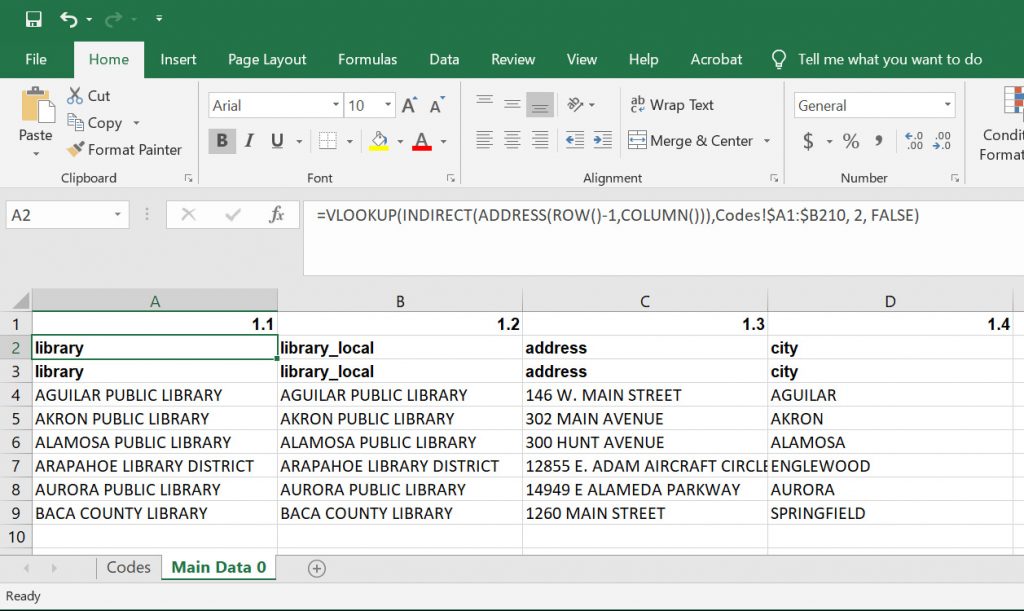
You should now have a worksheet with 3 headers:
- Question numbers
- Dynamic codes that are the result of VLOOKUP
- Text values of the codes in #2.
This is extremely important because if you try and save the worksheet to .CSV without creating the 3rd header, then the codes probably won’t be save correctly in the resulting file.